
• Image 1
  • Image 2
  • Image 3
  • Image 4
  • Image 5
  • Image 6
-15%

Tuya DIY WiFi Smart Light Switch Voice control Smart Life APP Wireless Remote Control Works with Alexa Google Home Smart Home

R152.34 R179.25
  • Ships From:

245 in stock

  • Description

    Note:

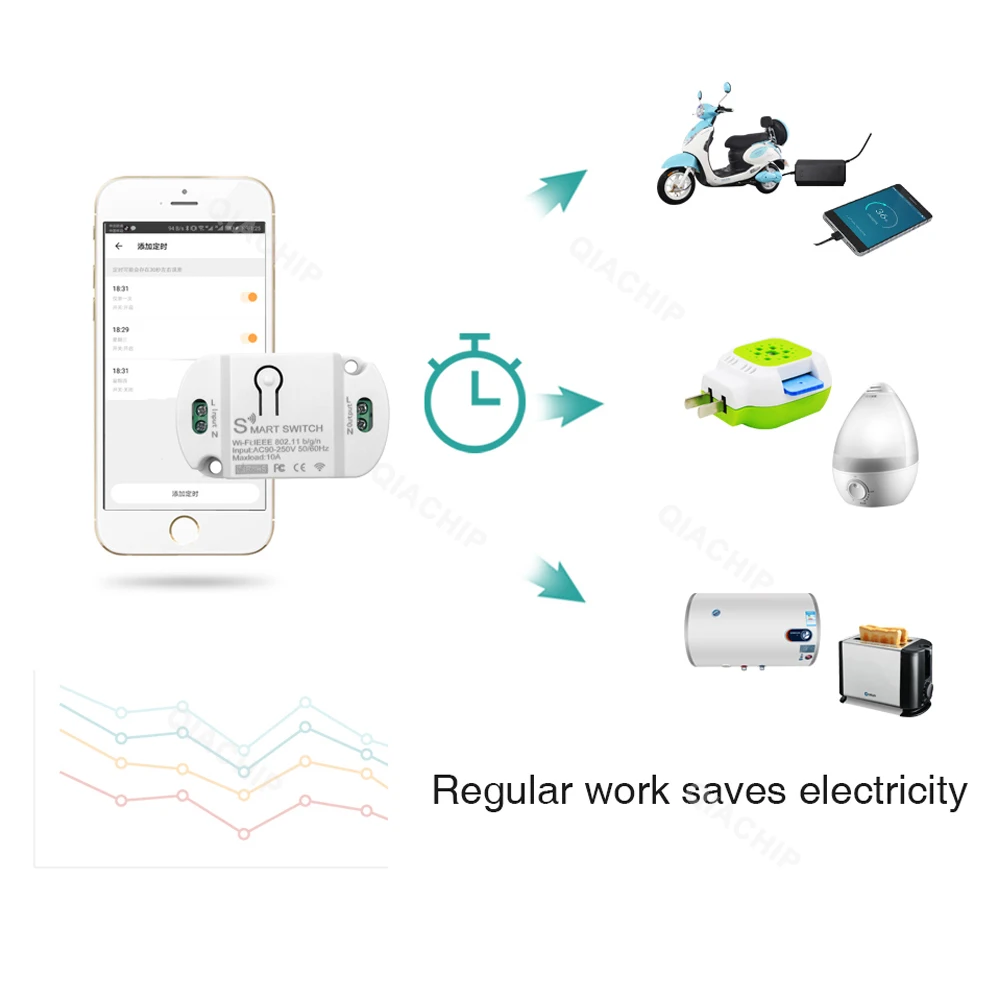
    This Product only have WIFI Function.


    Product Description:

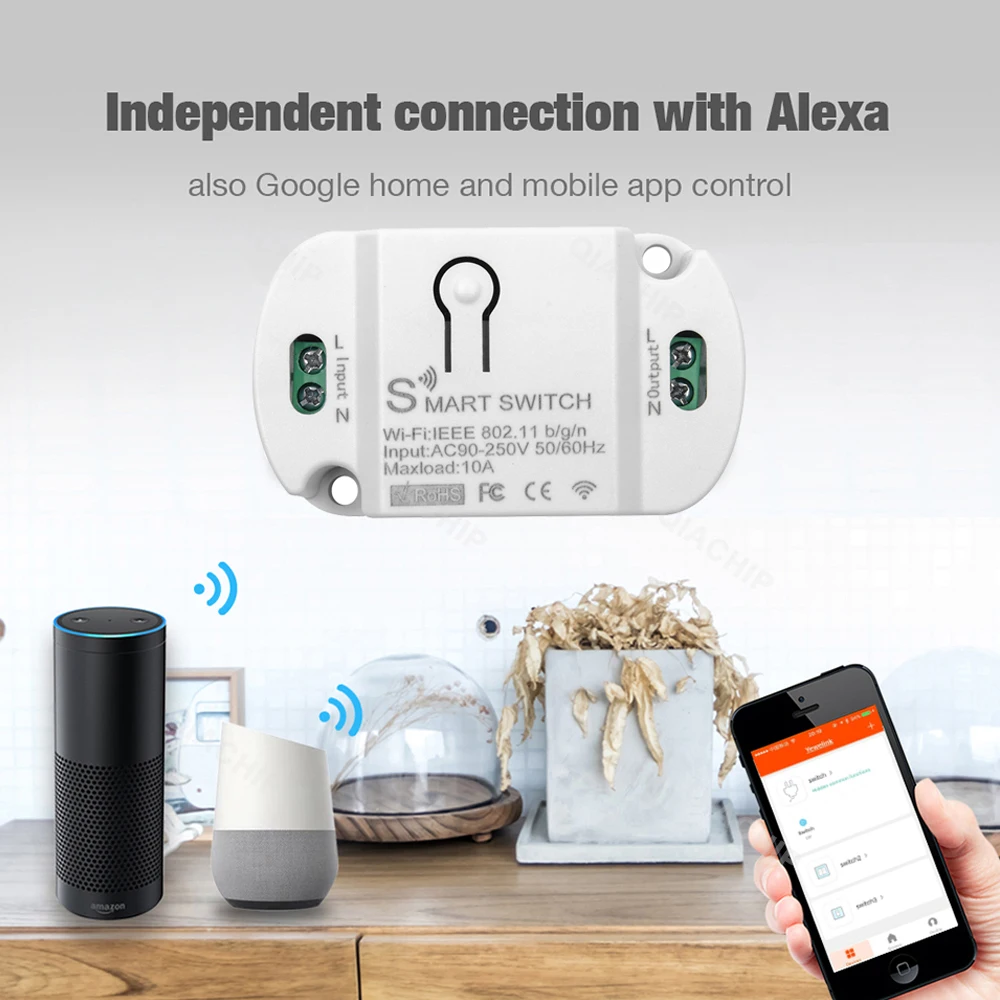
    Product Name:smart switch
    Way to control:App
    Support:Android/IOS
    Transfer method:WIFI
    Wireless WIFI:802.11B/G/N 2.4GHZ
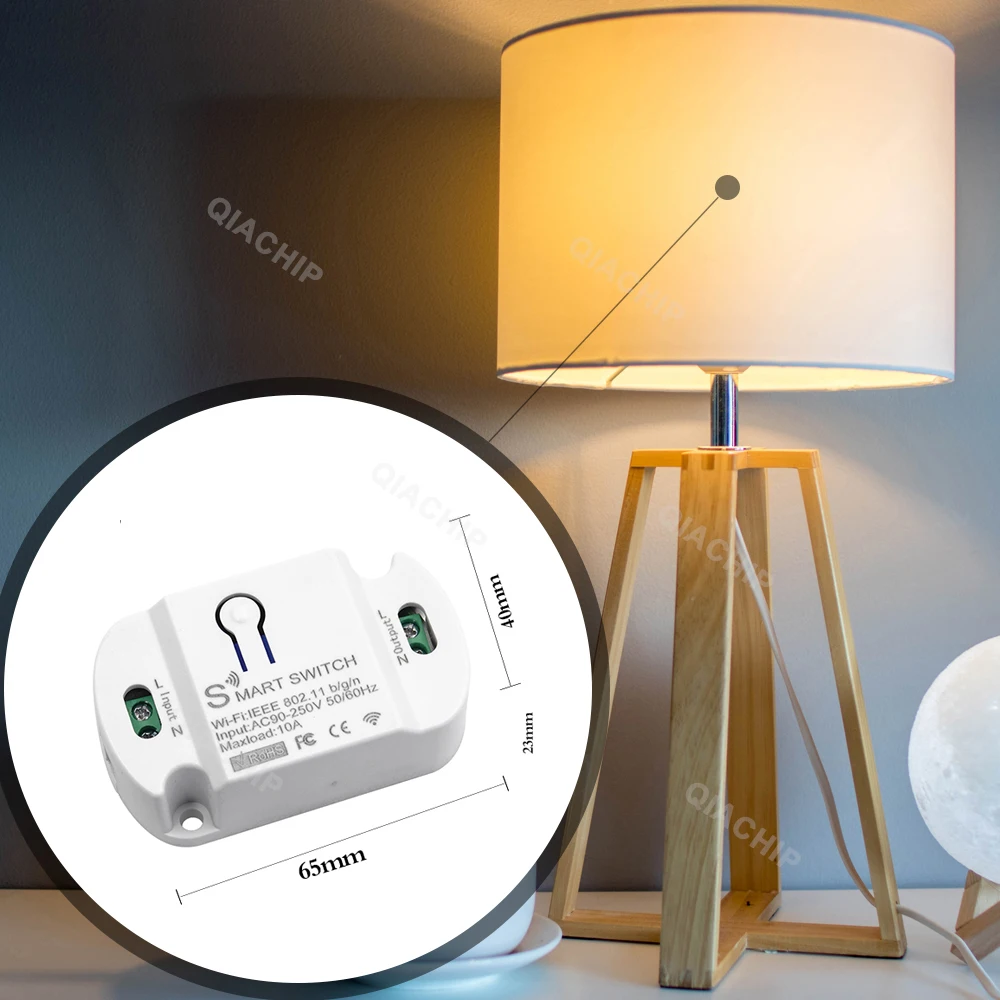
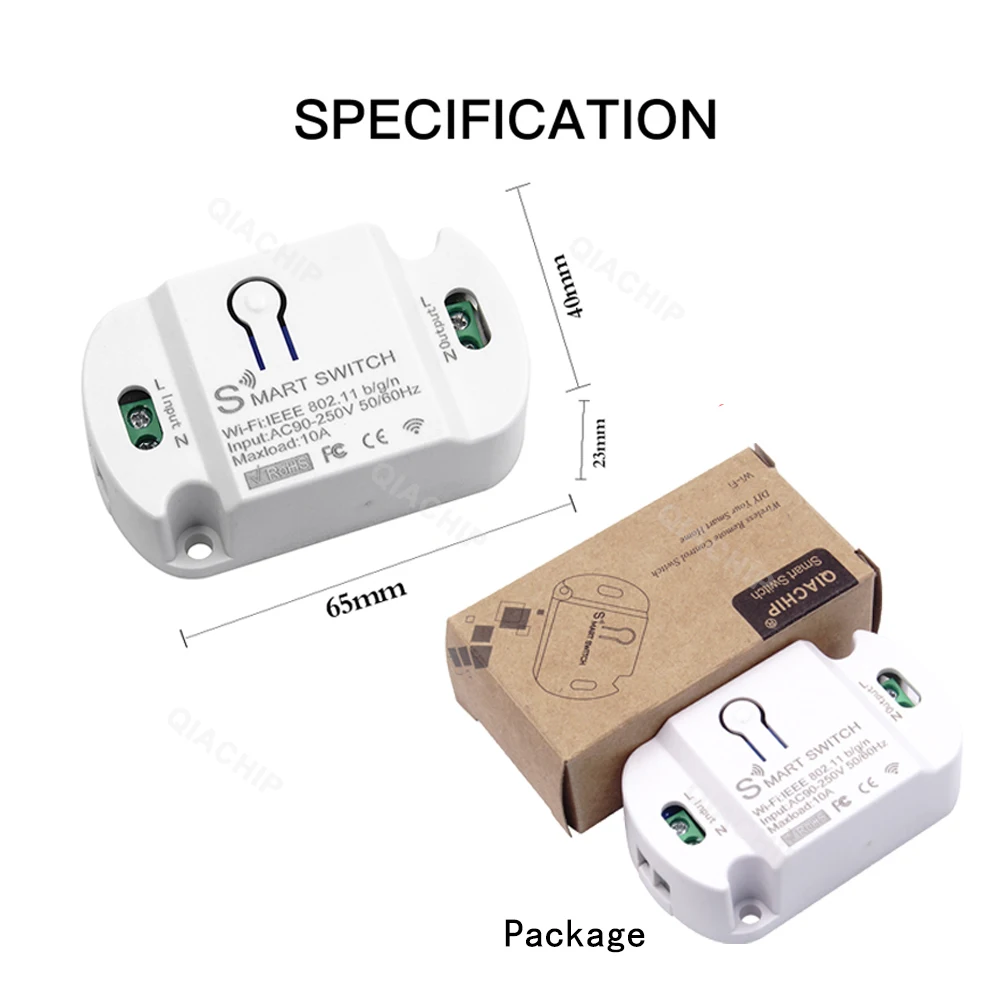
    size:65mm*23mm*40mm
    Remote control distance:
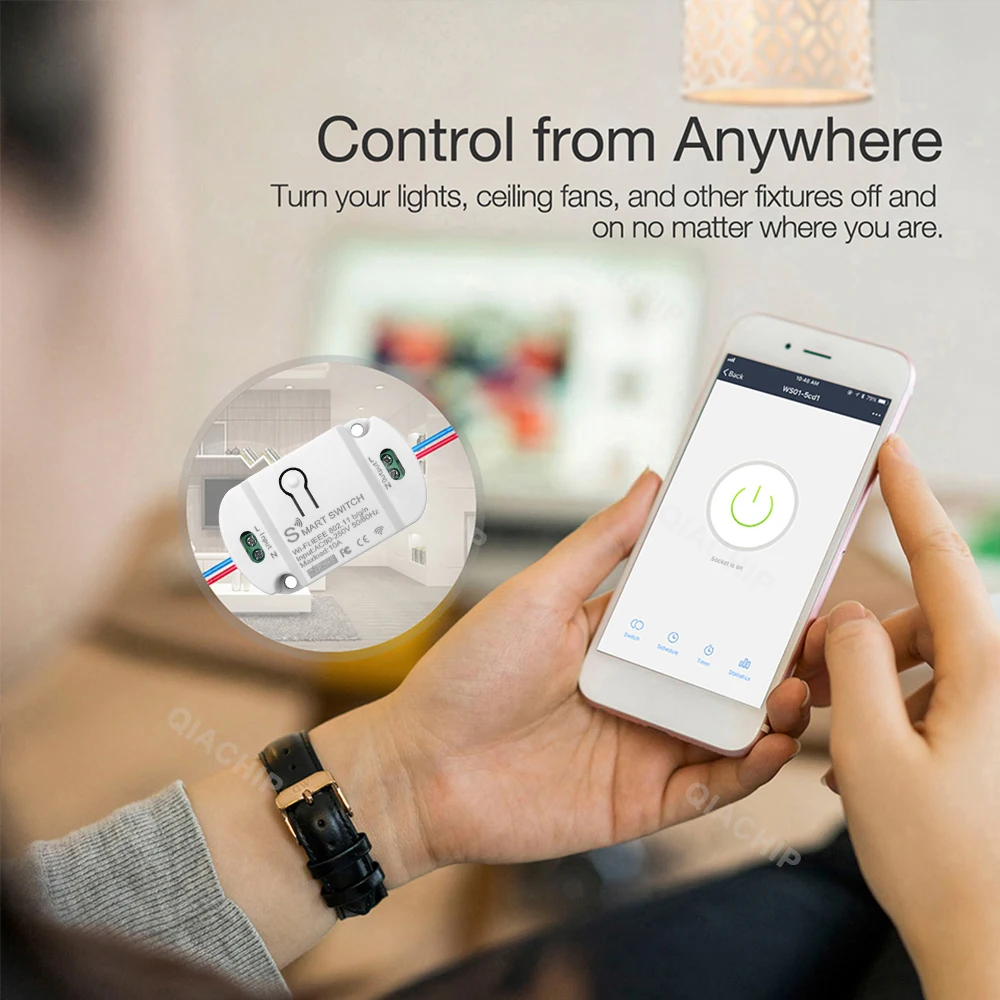
    mobile phone remote control
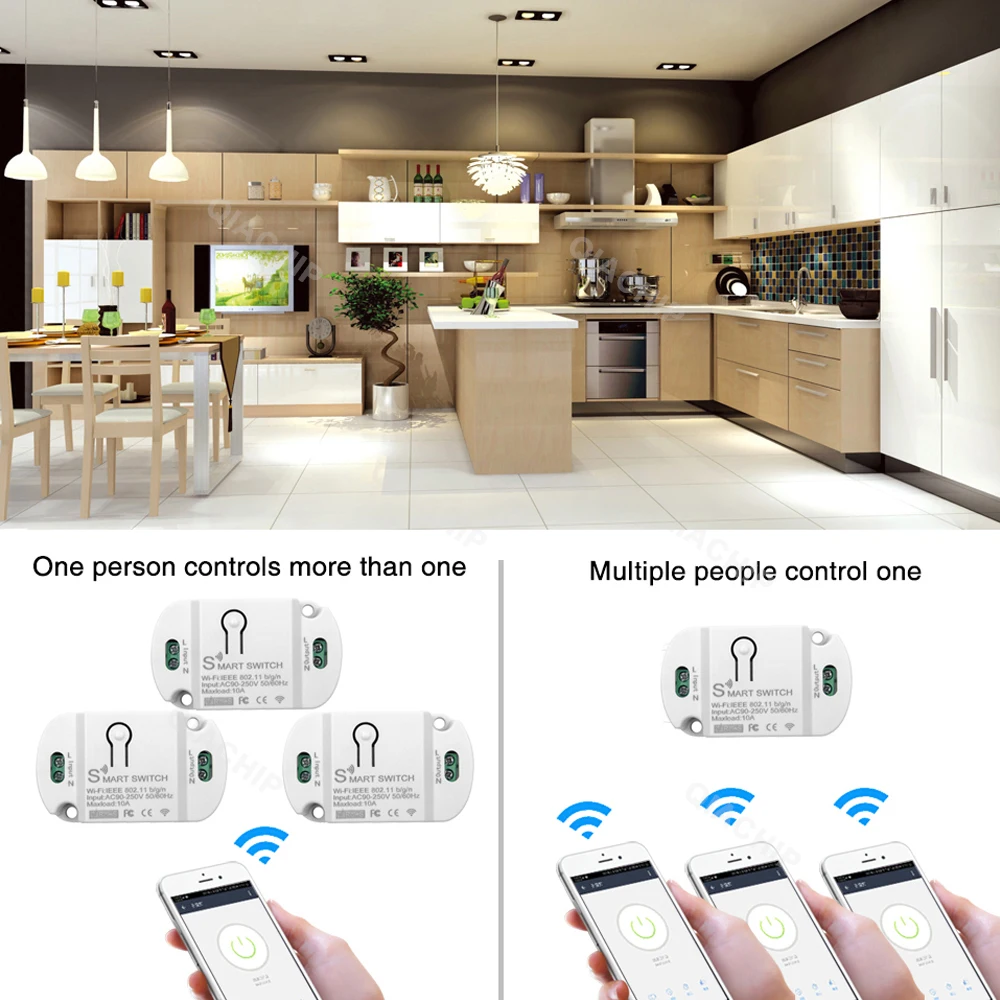
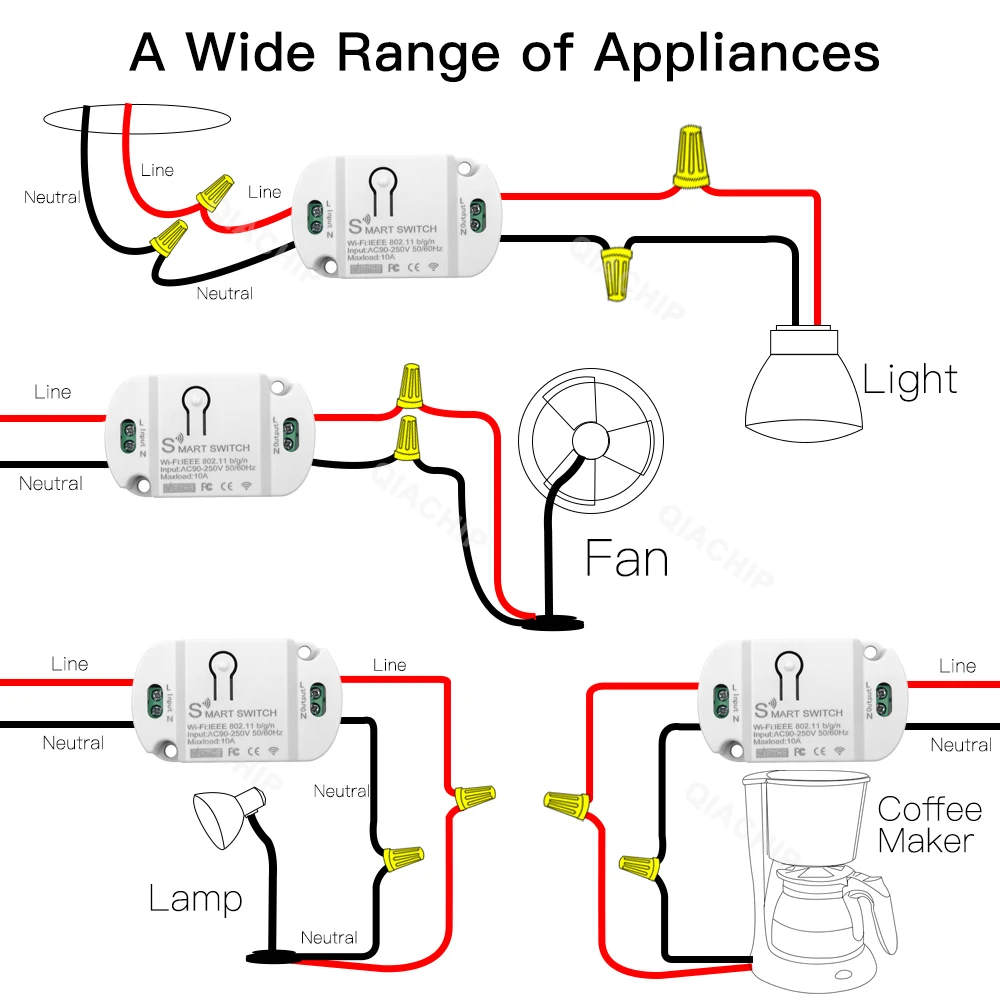
    Controllable line: 1 way
    Operating temperature:-10℃-60 ℃

    Input Voltage: AC 90V-250V 50/60Hz
    Max Current: 10A
    Max Load Power: Resistive load: 2200W (AC220V)
    Max Load Power: Incandescent lamp: 2200W (AC220V)
    Max Load Power: Inductive load: 500W (AC220V)
    Max Load Power: Capacitive load: 200W (AC220V)
    Max Load Power: Energy saving lamp: 300W (AC220V)

    How to connect the device to Wi-Fi

    First of all :
    How to connect the device to Wi-Fi ?
    1. Power on the smart switch and make sure that the phone is connected to the Wi-Fi network in the 2.4GHz frequency band;
    turn on the phone’s Bluetooth.

    2. Make sure that the device, mobile phone, and router are close to each other.

    3. Download and open the App:
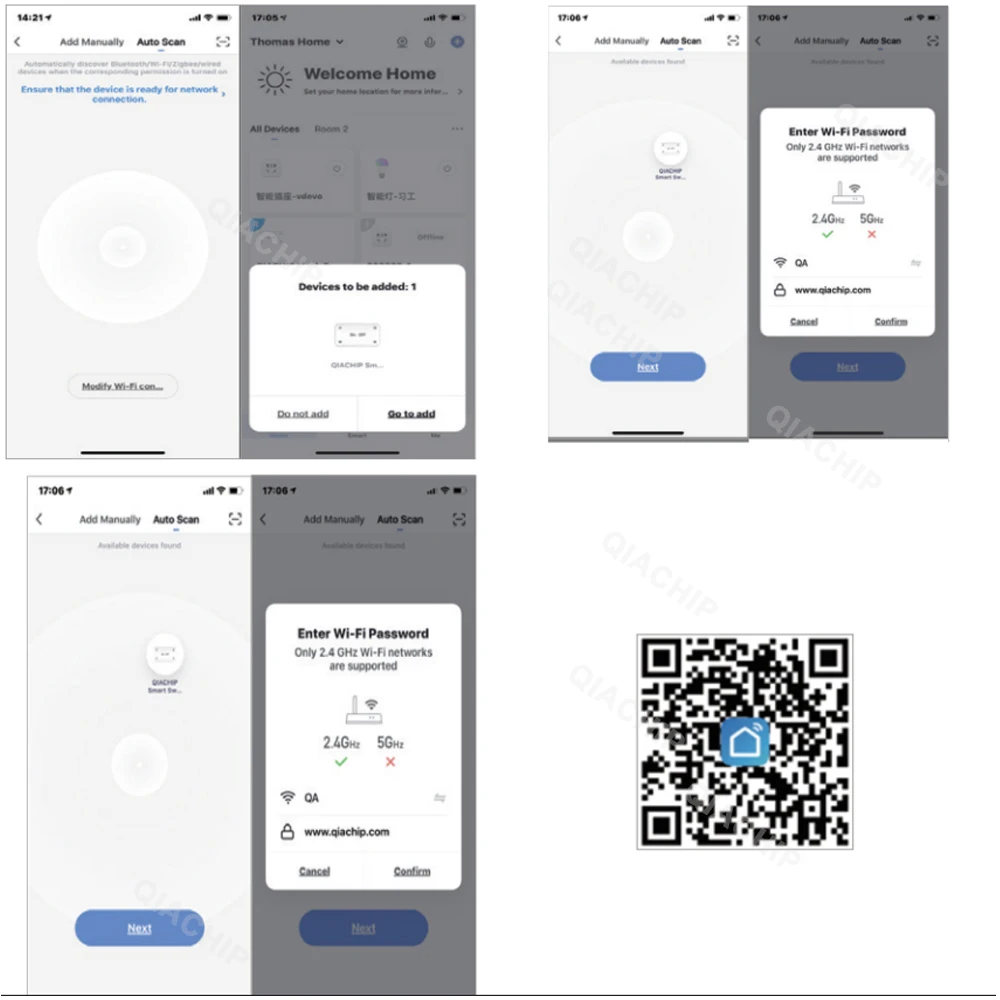
    Search for “Smart Life” in the App Store or scan the QR code below to download and install the App;For the first download and use, please click the “Create New
    Account” button to register;
    If you already have an account, click the “Log in with an existing account” button.

    4. Reset the smart switch: Press and hold the button on the smart switch for more than 6 seconds until the LED indicator on it flashes
    quickly.

    5. Open the “Smart Life” APP, click the “+” in the upper right corner
    to enter the device addition page, and then select “Auto Scan” (please turn on the Bluetooth function of the phone before performing this operation) to start searching for nearby devices to be added. After discovering the device to be added , The icon and name of the device will appear on the APP page or a prompt page
    will pop up, then please follow the APP prompts to add the device

    After the smart switch is successfully connected to Wi-Fi, you can see the newly added device on the home page of the Smart Life

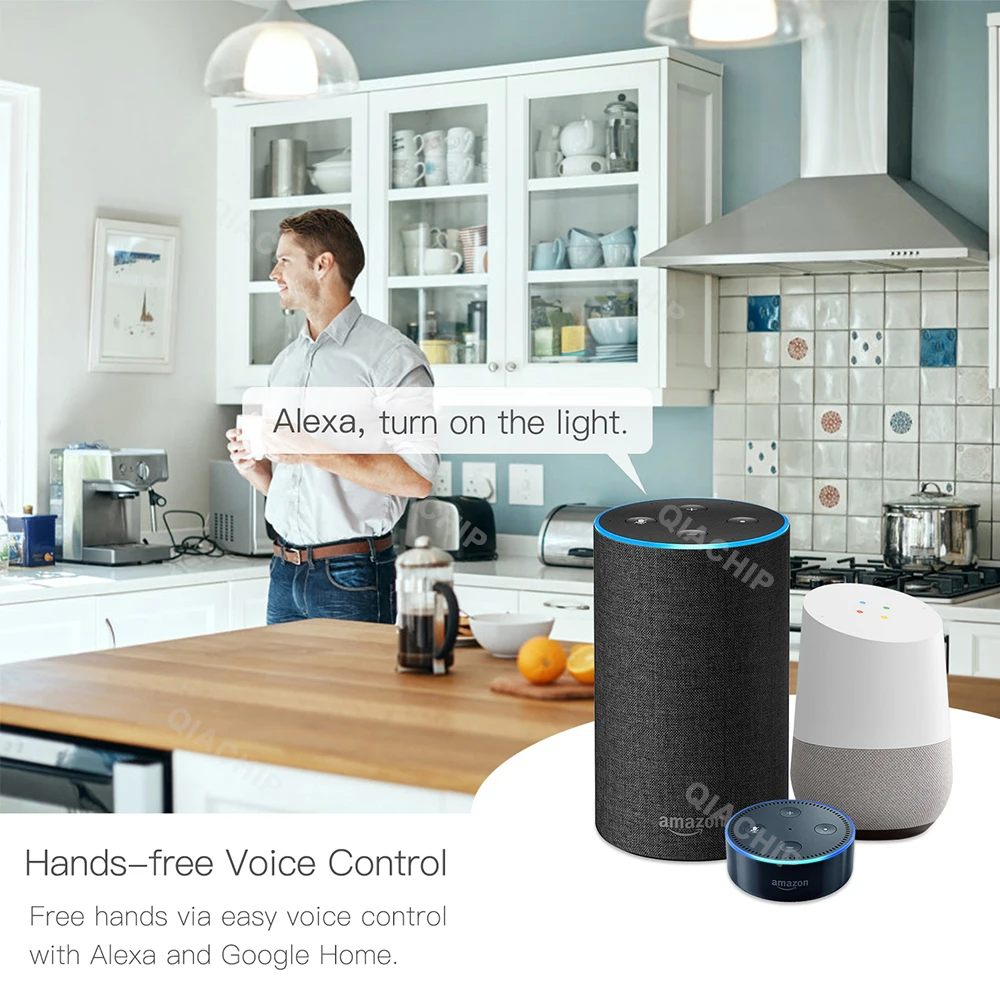
    How to connect to third-party applications such as Alexa and Google Assistant?

    When using a third-party smart speaker to connect,
    you first need to download the third-party APP and register an account, such as Amazon Alexa;

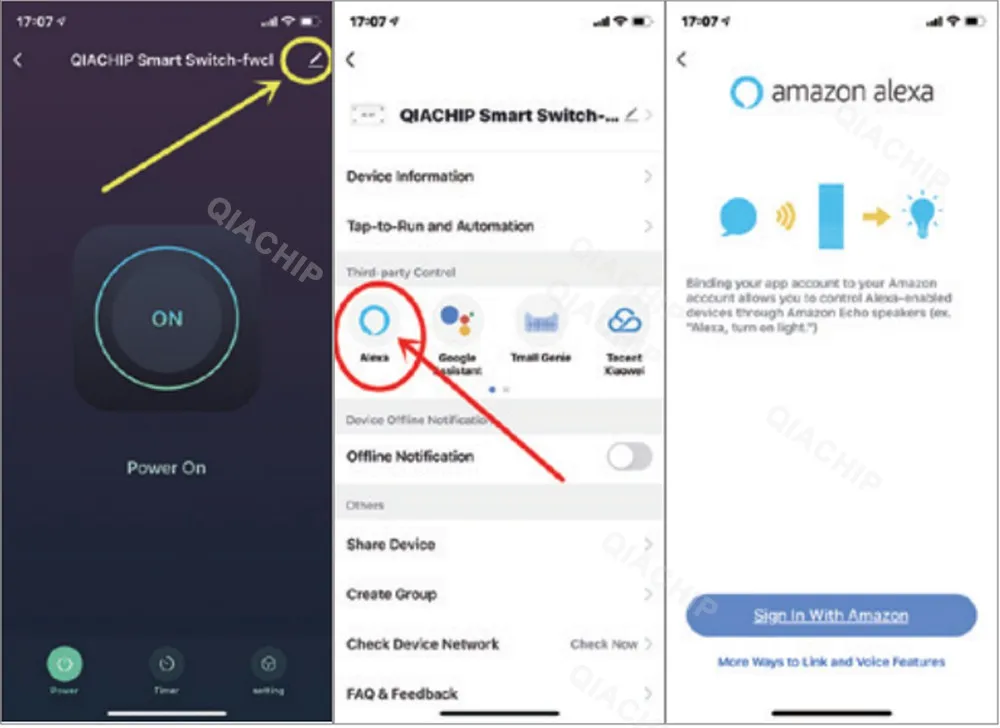
    then add the device in the “Smart Life APP”, open the device control page, click the upper right corner (see the picture below),

    and then Jump to the device information page,
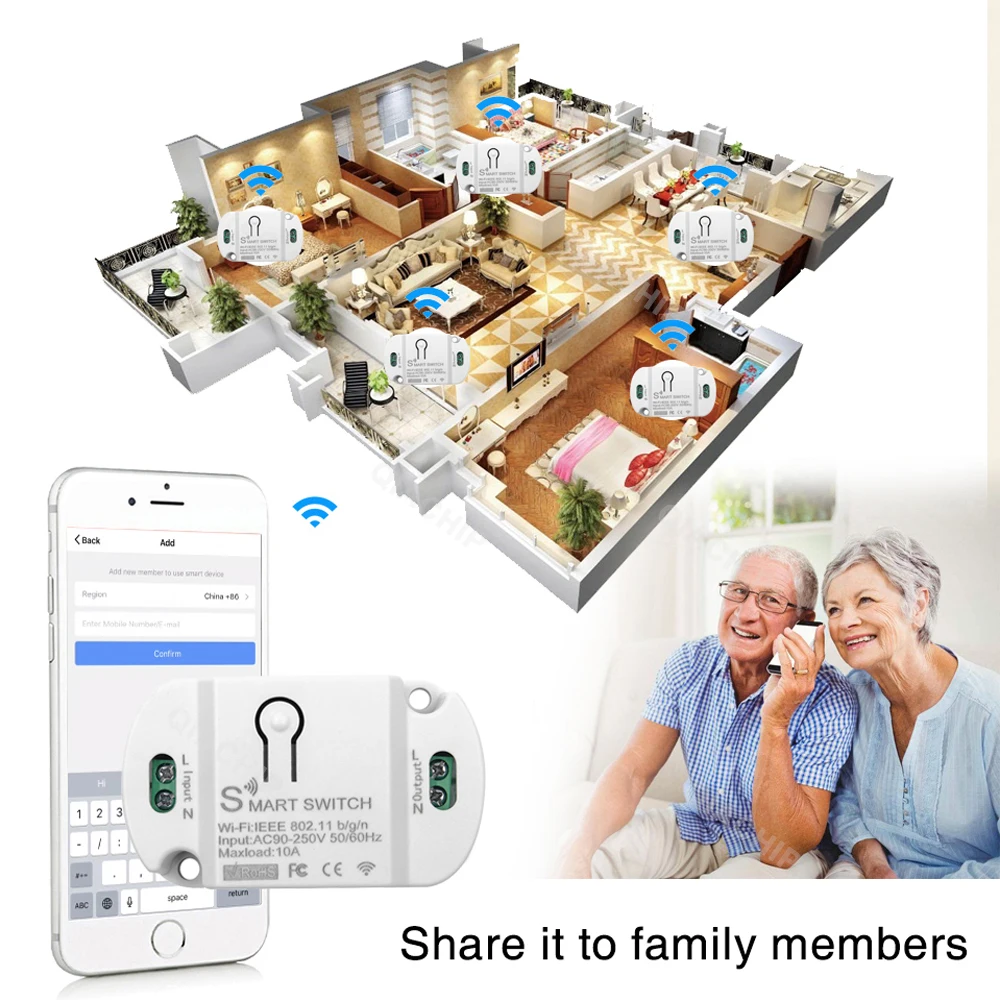
    where you can change the name of the device, and you can see the details of the third-party controlled APP supported by the device, select the APP you need to connect, such as Alexa, click the icon to enter the binding interface, and then press The page prompts the operation.

Follow us on:

Subscribe to our Newsletter
Please wait...