Smart Universal IR+RF Remote Controller
Application : All in One Smart Remote Control
● IR Control Devices: TV, STB(Set-Top-Box), TV Box, Air Conditioner, Fan, Light, Audio, Projector, DVD, Camera, Heater, Purifier, etc
● RF(433MHz) Control Devices: Curtains, Roller Shutters, Window Pusher, Hanger, Projection Screen, Garage Door, Retractable Door, RF Switch, etc.
※ Only supports RF 433MHz, doesn’t support RF 315MHz. Compatible with fixed code and learning code, not compatible with RF rolling code.

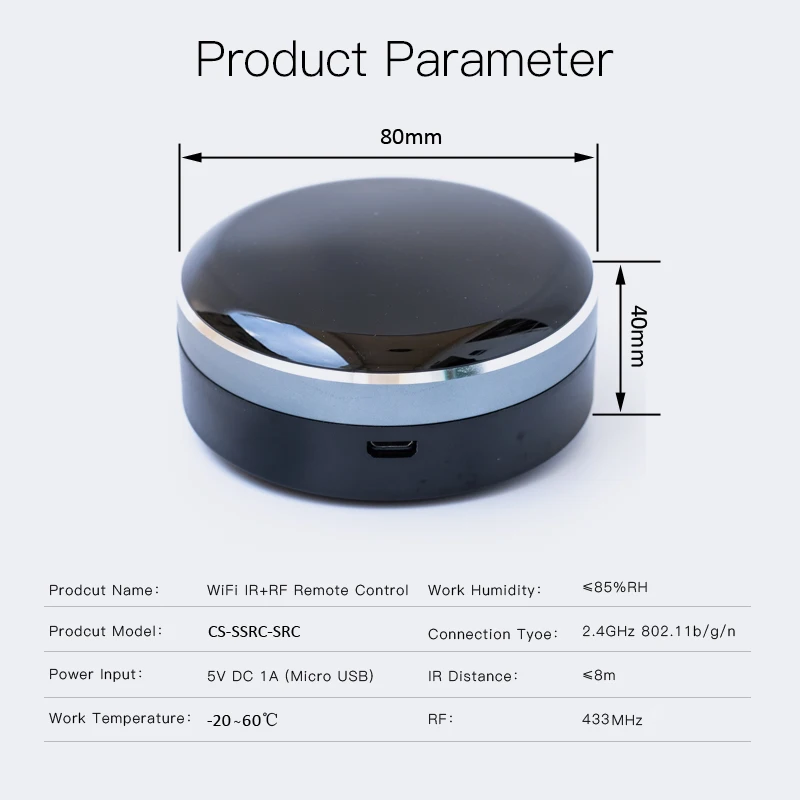
Product Parameter:
* Product Type: IR+RF Remote Control
* Model Number: CS-SSRC-IRC
* Input: DC 5V/1A(Micro USB)
* Standby Power Consumption: <0.85W
* Infrared Frequency: 38KHz
* Radio Frequency: 433MHz
* IR Control Range: ≤8m
* RF Control Range: ≤20m
* Internet Connection: Wi-Fi IEEE 802.11 b/g/n 2.4GHz
* Support OS: Android 4.4/iOS 9.0 or later
* App: Tuya Smart / Smart Life
* Working Temperature: -20~60℃
* Net Weight: Approx. 65g
* Material: PC
* Dimensions: 80*80*40mm
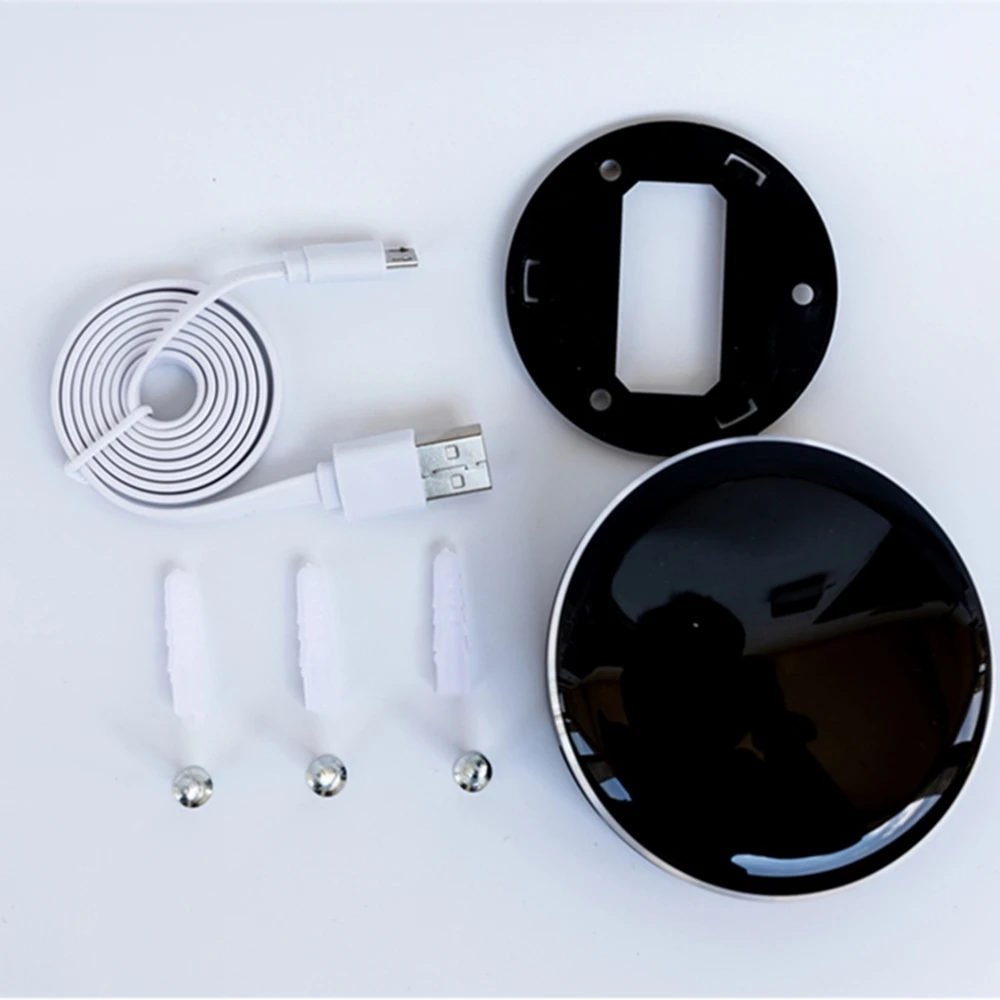
Package Contents:
Smart Remote Control x1
USB Cable x1
User Manual x1
Screws Kit x1
Massive IR/RF Code Database
Support 4000+ Brands, 50000+ IR/RF Code on cloud, supported devices library is constantly being updated every week.


App Remote Control
Remote Control your home appliances by using “Tuya Smart” or “Smart Life” App.
For example, turn on your air conditioner, no matter where you are.
-Support 99% air conditioner in the market, automatic cloud match, easy to set up.
-Turn on AC in advance, enjoying the comfortable temperature once you get home.


Voice Control: Works with Amazon Alexa, Google Assistant and Siri(iOS 12.0 or later)
By connecting App to Amazon Echo, Google Home, you are able to voice control your home appliances.
For example:
-Alexa, turn on the TV;
-OK Google, set air conditioning temperature to 25 degrees.


Timing and Automatic Triggering
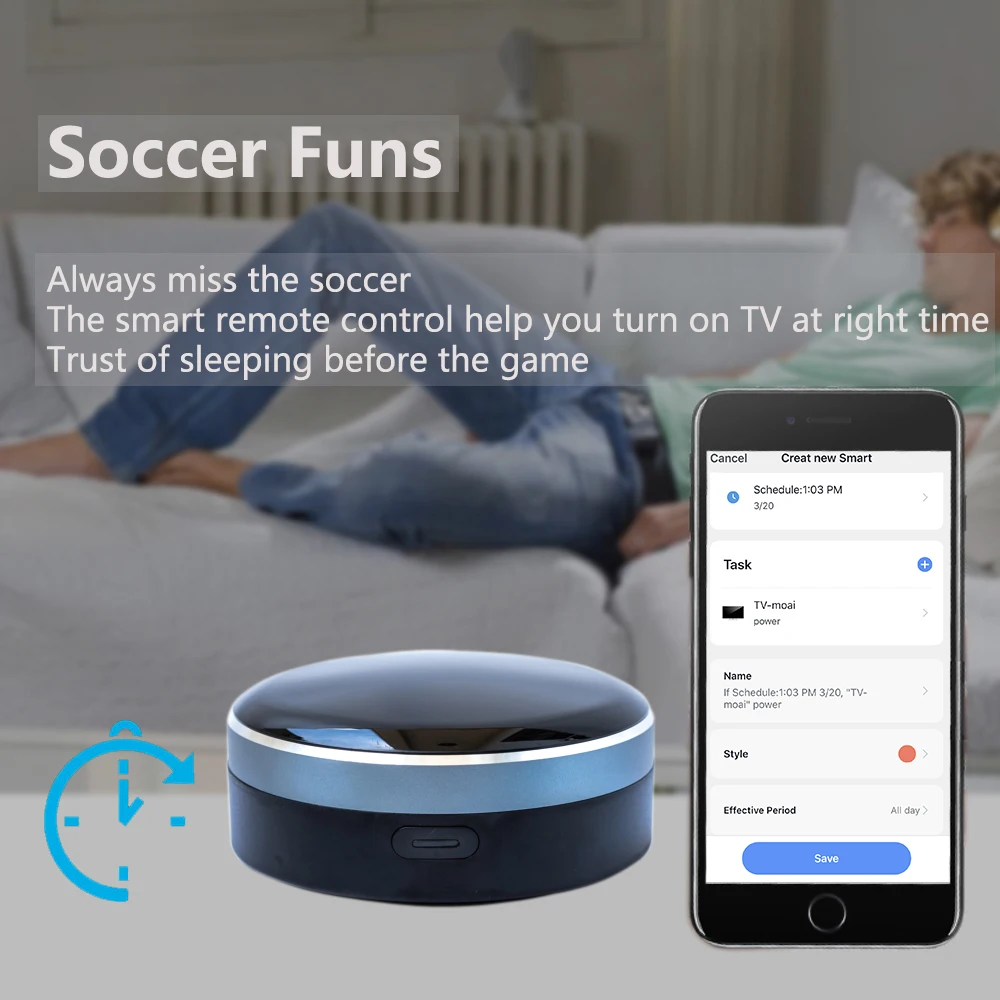
Never miss one second of excellent match
-Stay up late for the match,but always oversleep?
-The smart remote control helps you turn on TV at right time and right channel. Enjoy your match!


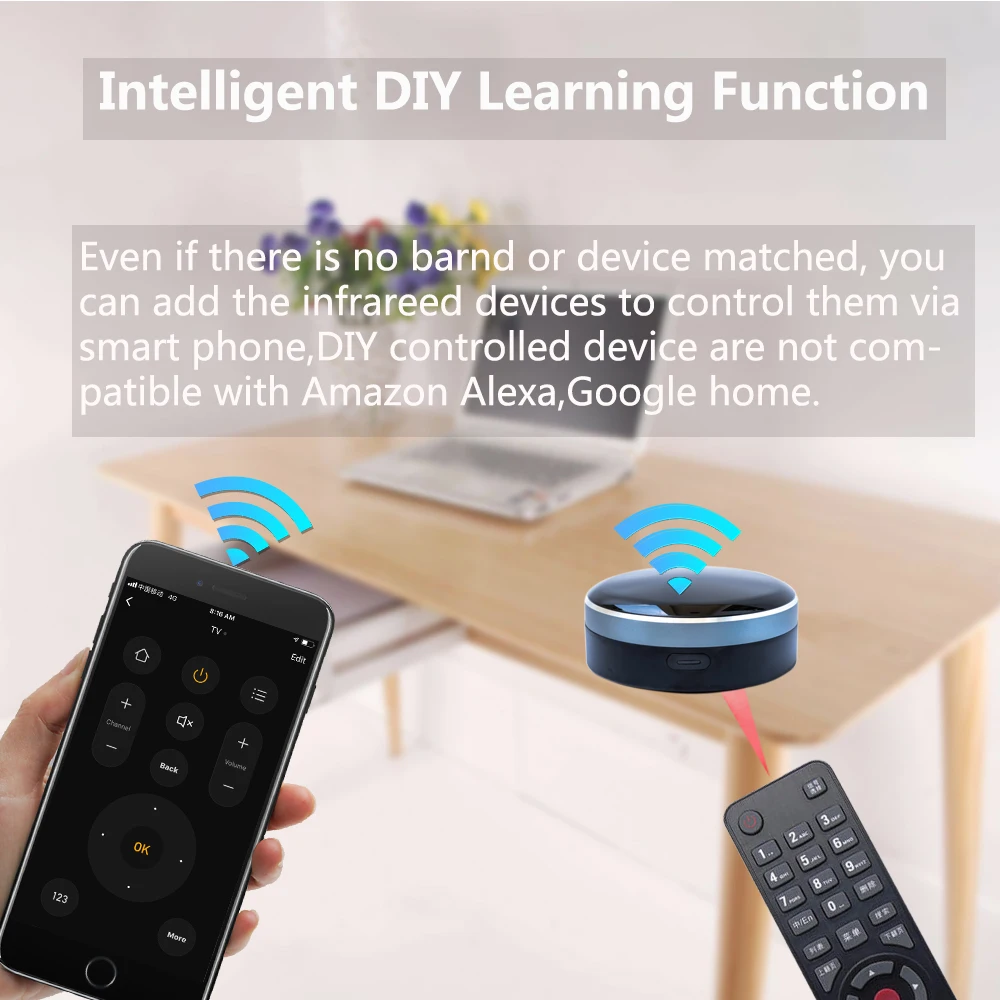
DIY: IR/RF Learning Function
-If your device type or brand is not in the list of my cloud code or can not match in database after all attempts, You may use “DIY” function to learn(copy) the IR/RF signal from the original remote control.

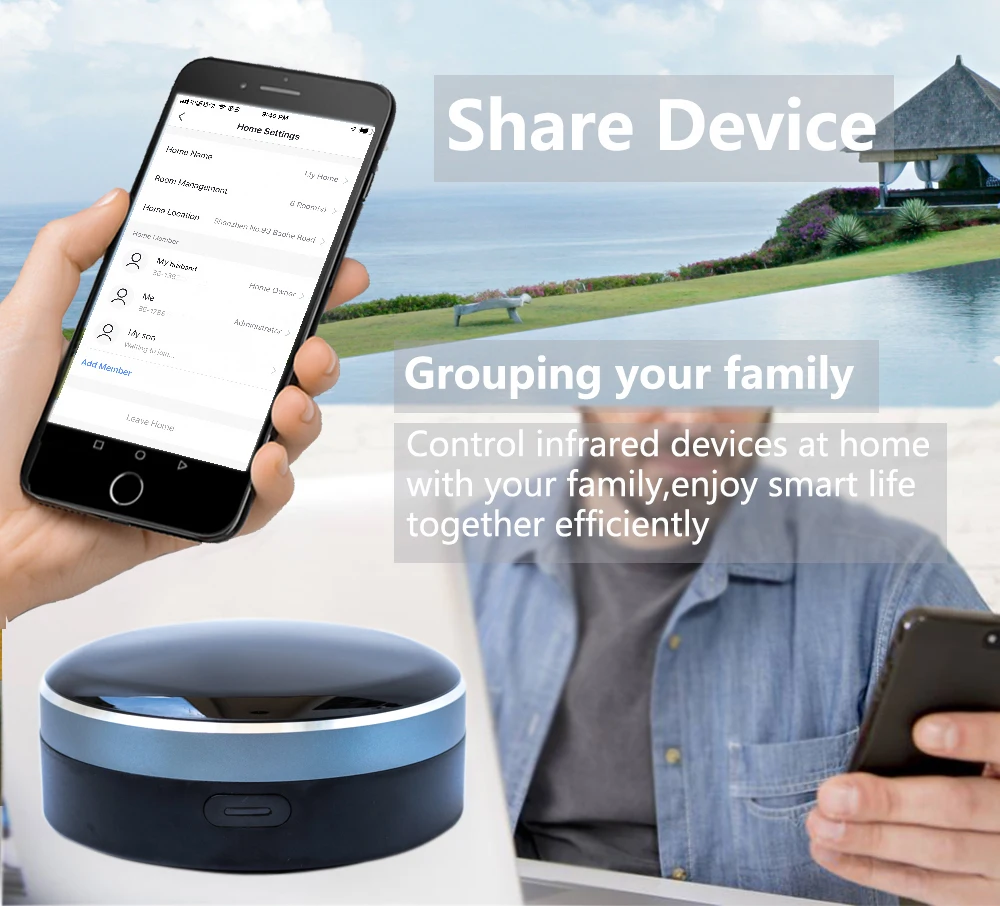
Share the smart remote control with your family
Only match the smart remote controller one time, you can share the device to your family.Control the IR/RF home appliances with your family together. Have fun to enjoy smart life.
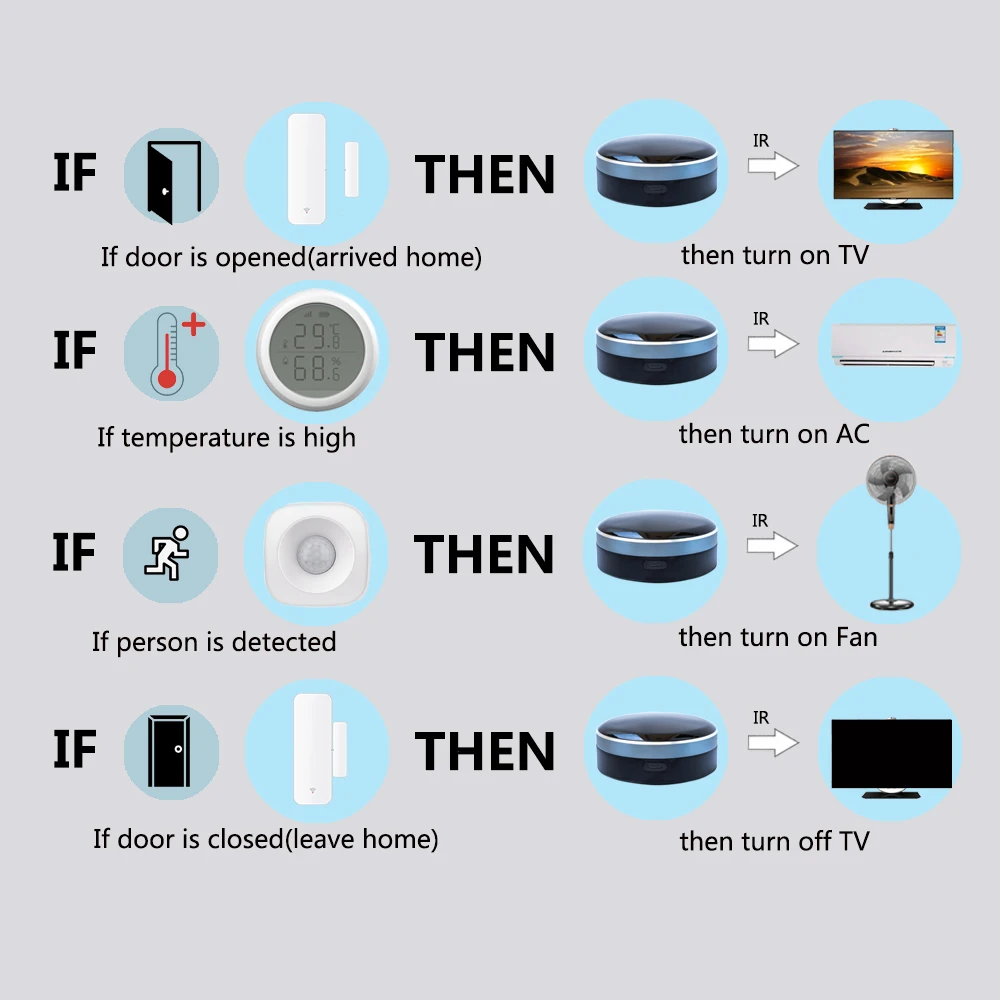
Scenario and Automation in App
A scenario(Tap-to-Run) consists of 1 or more actions. You may control multiple devices with one tap;
By creating “Automation” in App and interworking with other Tuya smart home devices, the universal remote control is able to execute actions automatically according to conditions, such as device status, weather and time.
Product Parameter
How To Install App
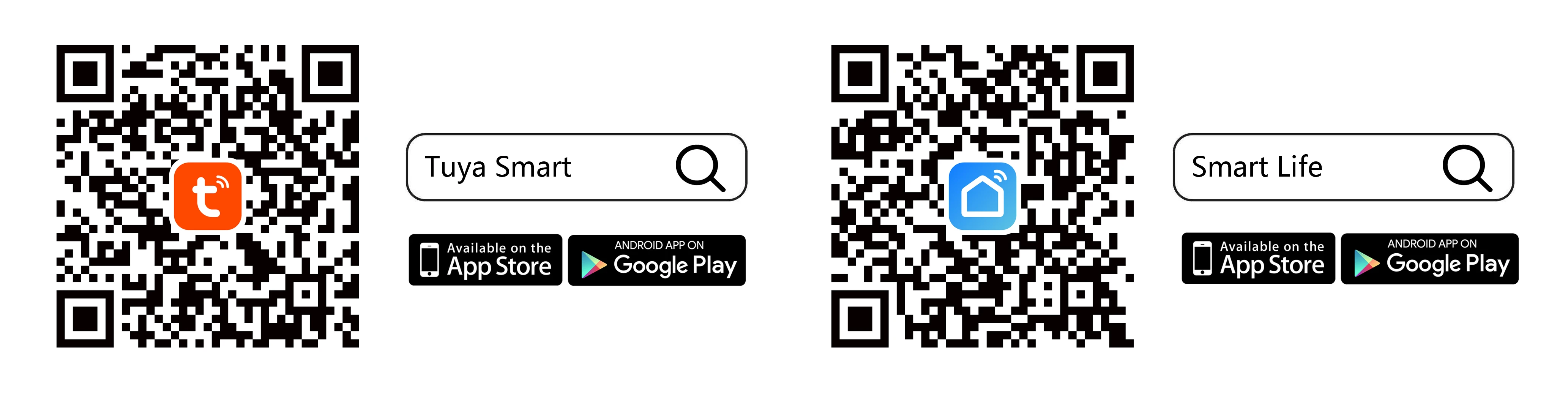
Scan the QR code below, or search “Tuya Smart” or “Smart Life” in App
Store or Google Play to install it. Sign up an account and then log in.
▼Choose either one App to install: Tuya Smart(Recommended) or Smart Life. No need to install both APPs.
How to Add Device in App
Enable cellphone WiFi and Bluetooth, confirm the indicator light is blinking, open App, tap “Add Device” or “+”, several seconds later, App will pop-up a window, tap “Go to add” to add device. Then follow the steps in App.

How to Enable Siri Voice Control
→Open Tuya Smart App, tap “Smart” at bottom navigation bar, choose “Tap-to-Run”, then tap “+” at the top-right corner, Set a condition(choose “Launch Tap-to-Run”) → Set up task(choose “Run the device”) → Choose the device that you want to control → Select Function and then tap “Next” → tap “Save”, then a “Tap-to-Run” is created successfully. Then tap “Add to Siri”, in the “Siri Shortcut”, choose the scenario(Tap-To-Run) to add it. Next input a custom phrase and tap “Add to Siri”, then setup is done. Every time when you say this phrase to Siri, Siri will tell Tuya Smart App to run this shortcut to control the device.


Follow us on: